TABLE OF CONTENTS
- 1. Introduction
- 2. Requirements and Preparation
- 3. Step-by-Step Configuration
- 3.1 Courier Delivery Fees
- 3.2 Delivery Fee Templates
- 3.3 Assigning a Template to a Courier
- 3.4 Courier Settings
- 4. Validation and Testing
- 5. FAQ
- 6. Conclusion
1. Introduction
This guide provides a full, detailed explanation of how to configure courier delivery in the system. You will learn how to:
Create and apply courier delivery fees — meaning how much the courier earns per completed delivery.
Configure payment templates.
Control which data and functions are available to couriers in the mobile app.
Enable confirmation of delivery cycles and steps.
These settings allow you to flexibly regulate courier compensation, control the delivery workflow, and improve the interaction between managers and couriers.
2. Requirements and Preparation
Before you begin, make sure you have:
Access to the Admin Panel.
Delivery polygons created (if region‑based calculation is used).
Updated courier fee and rate data.
Courier employee accounts already added to the system.
3. Step-by-Step Configuration
3.1 Courier Delivery Fees
Go to Settings → Courier management → Courier Delivery Fees.
Here you configure the delivery fee calculation methods for couriers who are paid per order, not hourly.
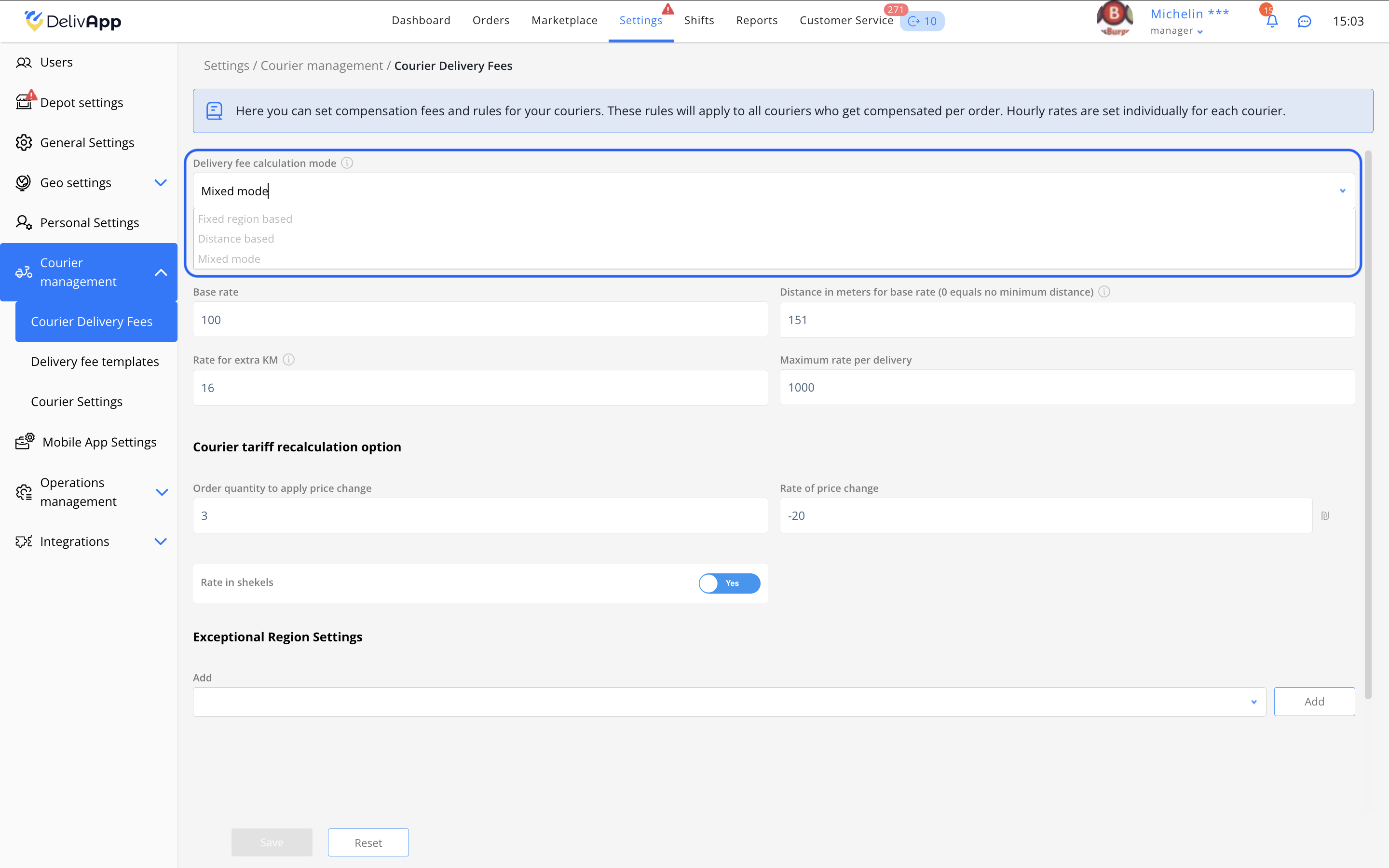
Delivery fee calculation modes
Fixed region based
Compensation is determined by predefined delivery zones (polygons). Each zone can have its own fixed fee.
Distance based
Compensation is based on the actual distance between pickup and drop-off. The courier earns according to the route distance — especially useful for cities with large delivery zones.
Mixed mode
A combined method using both polygons and distance. Some zones can have fixed fees, and all others use distance-based fees.
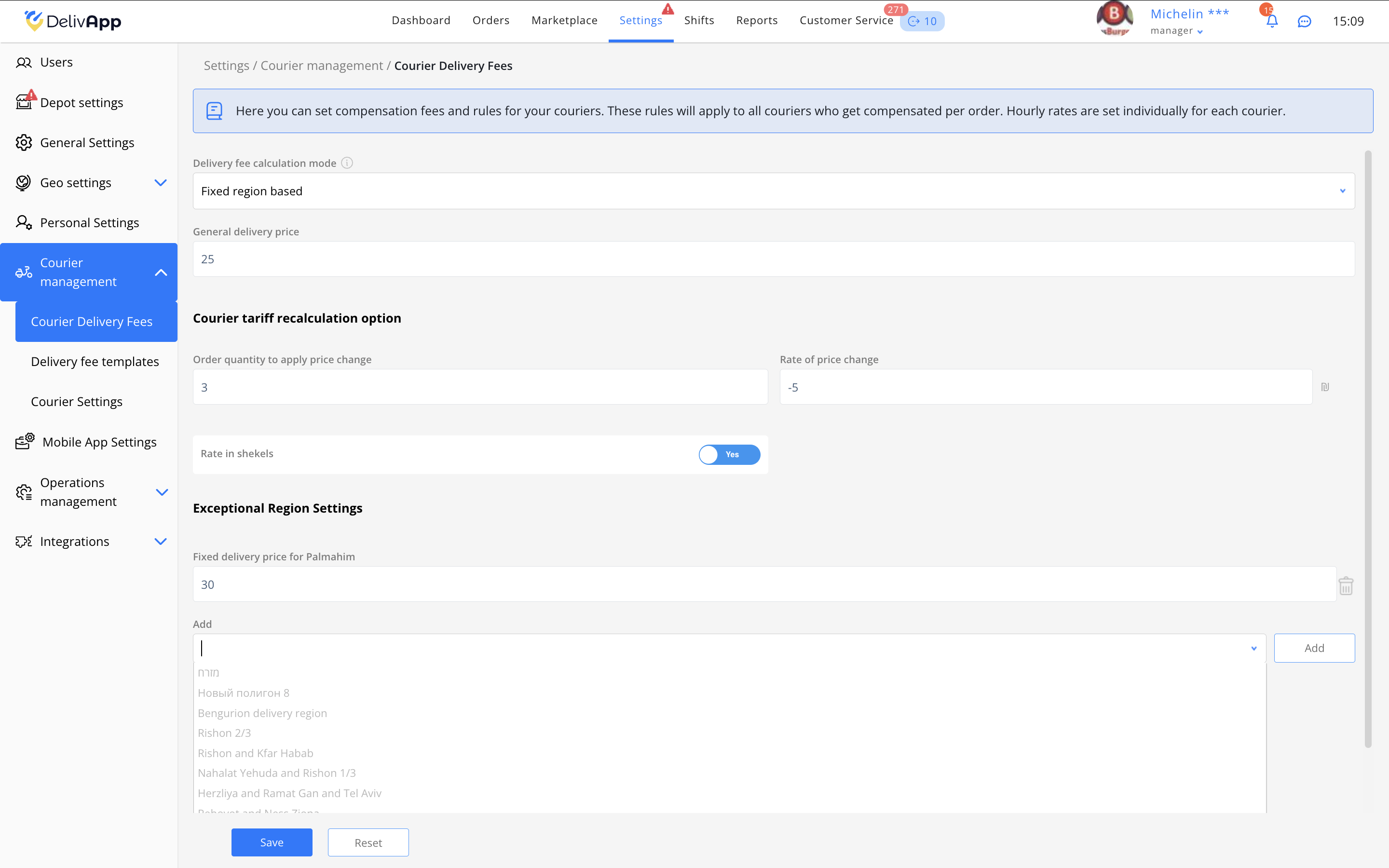
Fixed Region Based Mode
Enter the general delivery price — the base amount the courier receives per order (e.g., 25).
Enable tariff recalculation for multiple orders in one cycle:
Enter the order quantity threshold from which recalculation applies (e.g., 3 orders).
Define whether recalculation decreases or increases the payment (a minus sign reduces, a positive value increases).
Enter the rate of price change — the value added or subtracted per order when the threshold is reached.
Examples:
0— no changes (25 → 25)-5— reduces payment by 5 (25 − 5 = 20)10— increases payment by 10 (25 + 10 = 35)
Exceptional Region Settings
Add polygons with fixed fees. These override the general delivery price.
Example:
General fee: 25
Polygon “Center”: 22
Example calculation:
General tariff: 25
Threshold: 3
Change: –5
If the courier takes 3 orders in one cycle → each = 25 − 5 = 20, total = 20 × 3 = 60.
If the courier takes 2 orders → standard calculation applies: 25 × 2 = 50.
Recalculation applies only once the threshold is reached.
Distance-Based Mode
Enter the base rate — minimum payment per order for the base distance.
Enter the distance in meters for base rate — within this distance, the courier receives only the base rate.
Enter the rate for extra KM — added for each kilometer beyond the base distance.
Enter the maximum rate per delivery — the total payment will not exceed this amount.
Enable Courier tariff recalculation if multi-order cycles should affect payment.
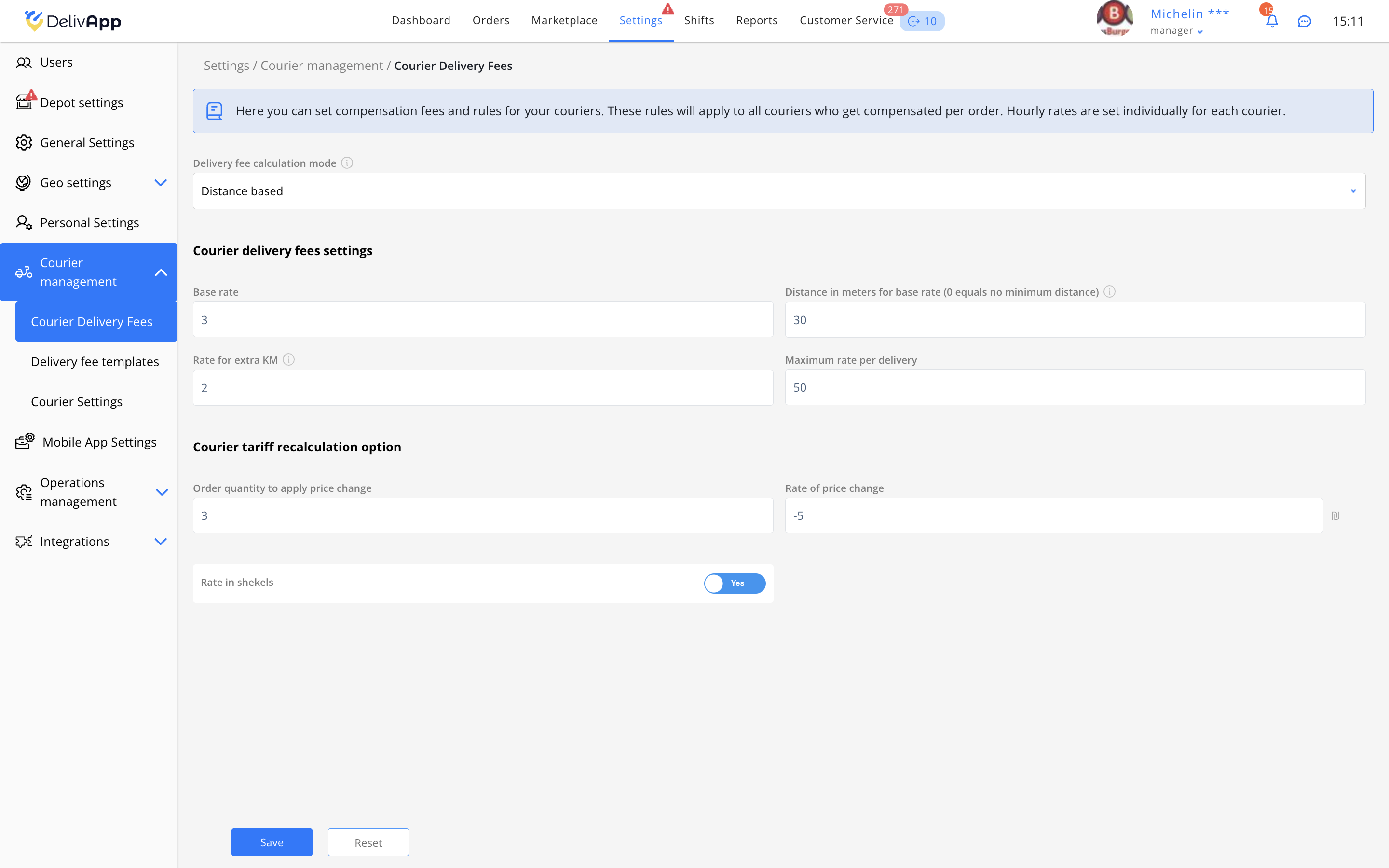
Example:
Base rate: 3
Base distance: 30 m
Extra KM rate: 2
Max rate: 50
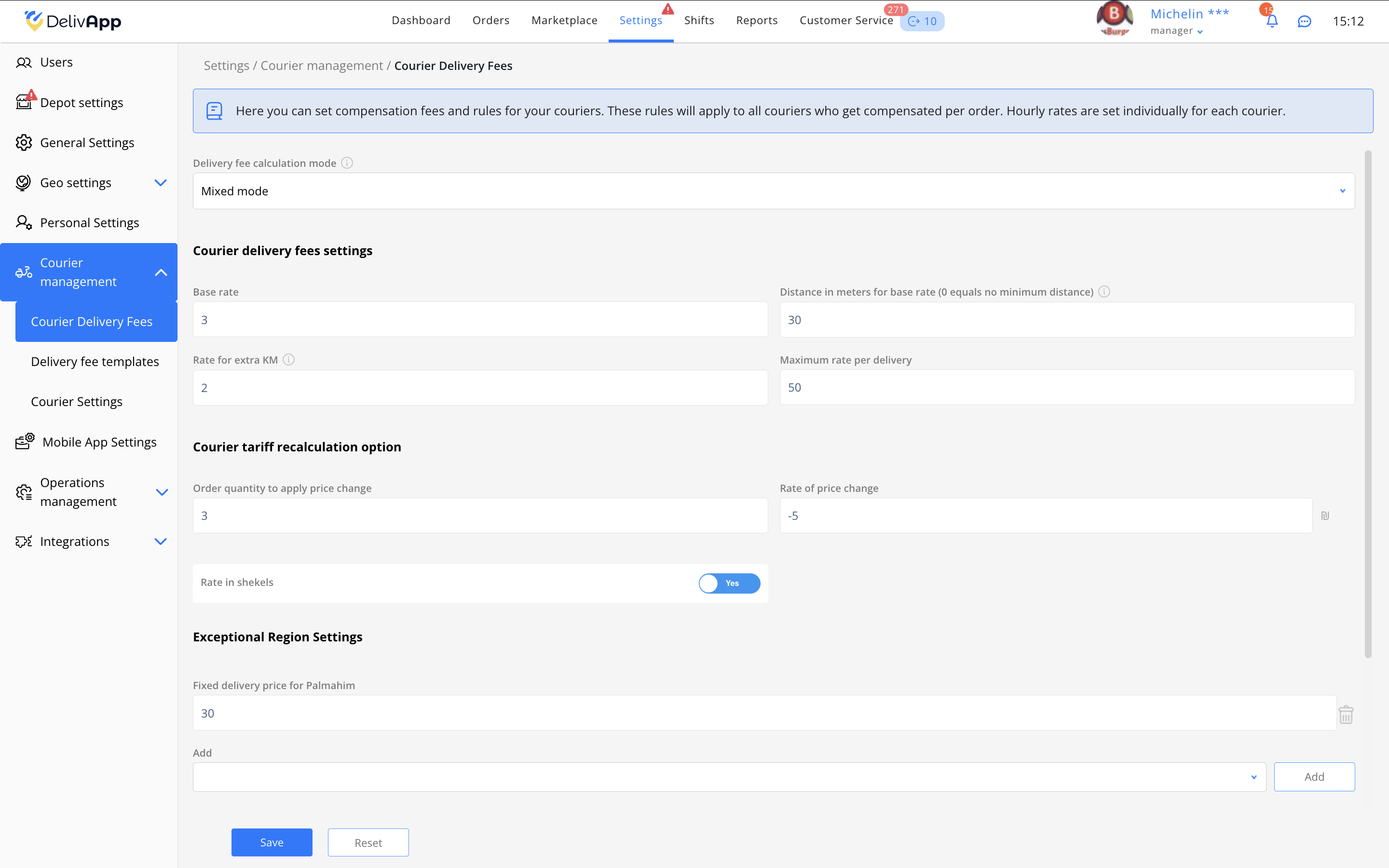
Mixed Mode
Configure the base rate, base distance, and rate for extra KM (same as Distance Mode).
Add fixed-price polygons for zones requiring special fees.
Save changes.
Tip: Mixed mode is ideal for cities with varied delivery density — central zones can use polygons, while suburbs use distance-based fees.
3.2 Delivery Fee Templates
Payment templates allow you to create individual payment schemes for specific couriers. These are used when:
Couriers work under different compensation agreements.
Only some couriers should receive distance-based pay.
Payment depends on the type of vehicle.
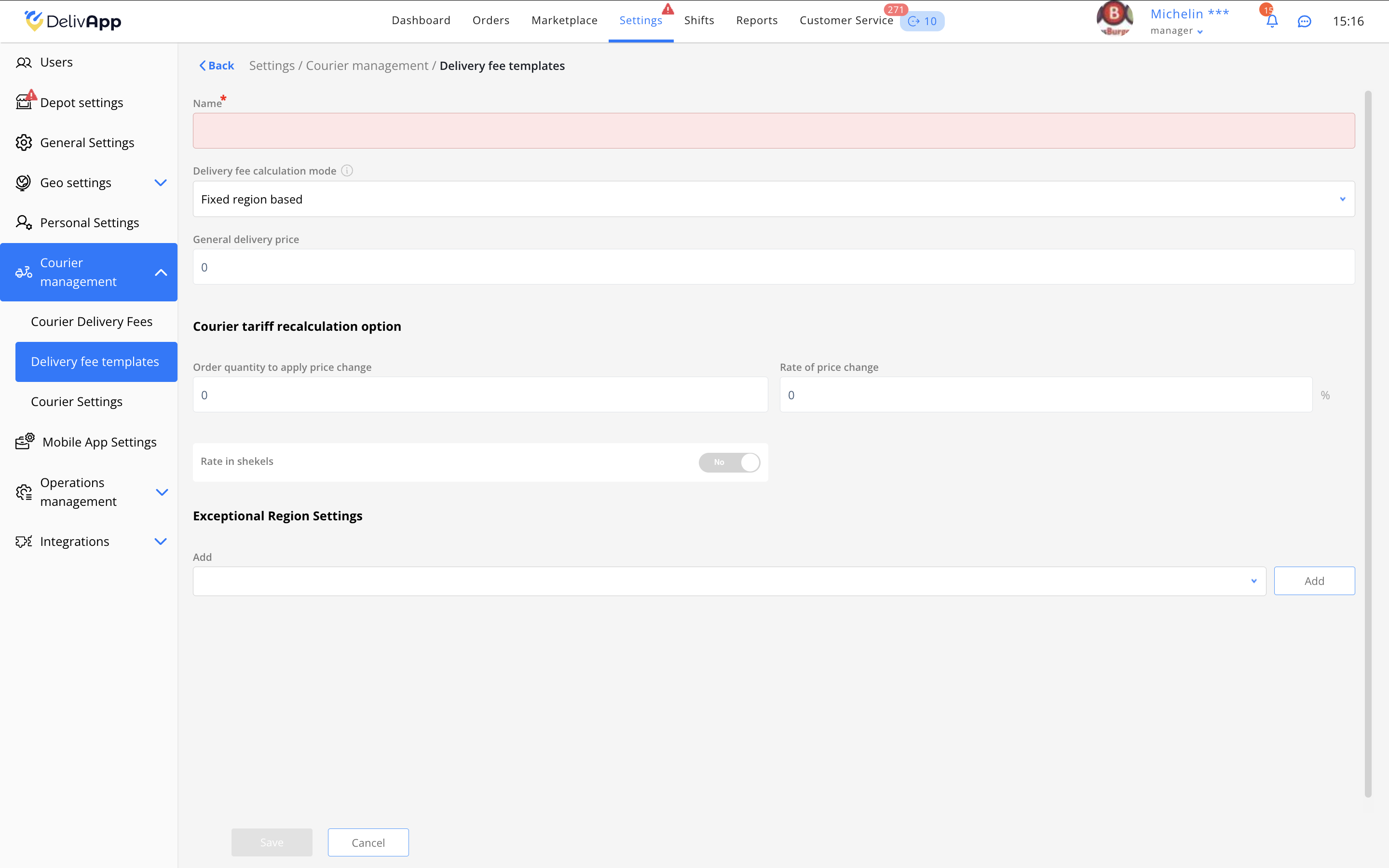
To create a template:
Go to Delivery fee templates.
Click Add.
Enter a template name — e.g., Evening Shift Tariff.
Configure the fees exactly as in the Courier Delivery Fees section.
Click Save.
Tip: Use templates to separate compensation between in‑house couriers and partner couriers.
The template will appear in the list; you may edit it or duplicate it to create a new template faster.
3.3 Assigning a Template to a Courier
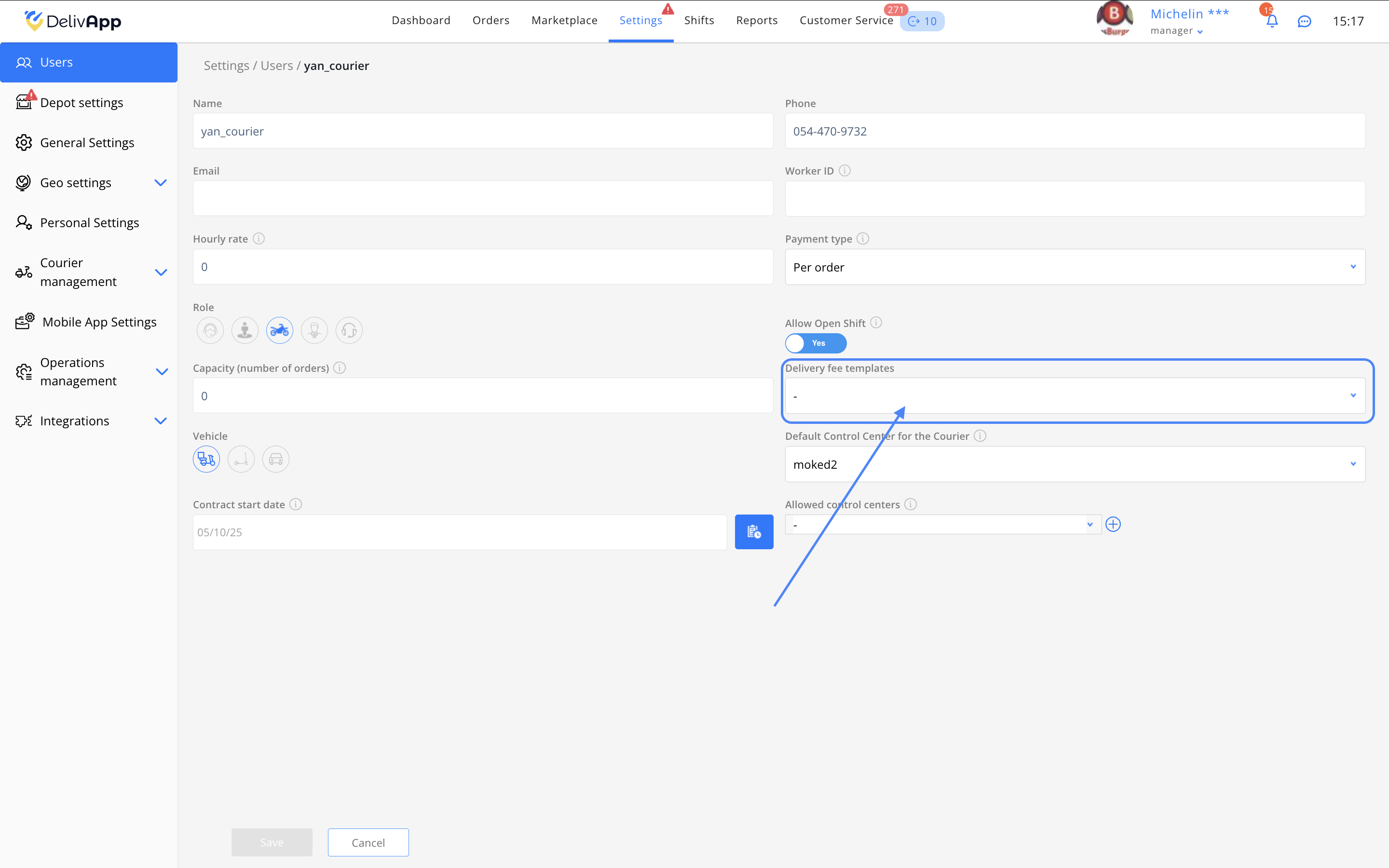
Go to Settings → Users.
Select the courier.
Click Edit.
In Delivery fee templates, choose the template.
Click Save.
3.4 Courier Settings
Go to Settings → Courier management → Courier Settings.
Courier Control
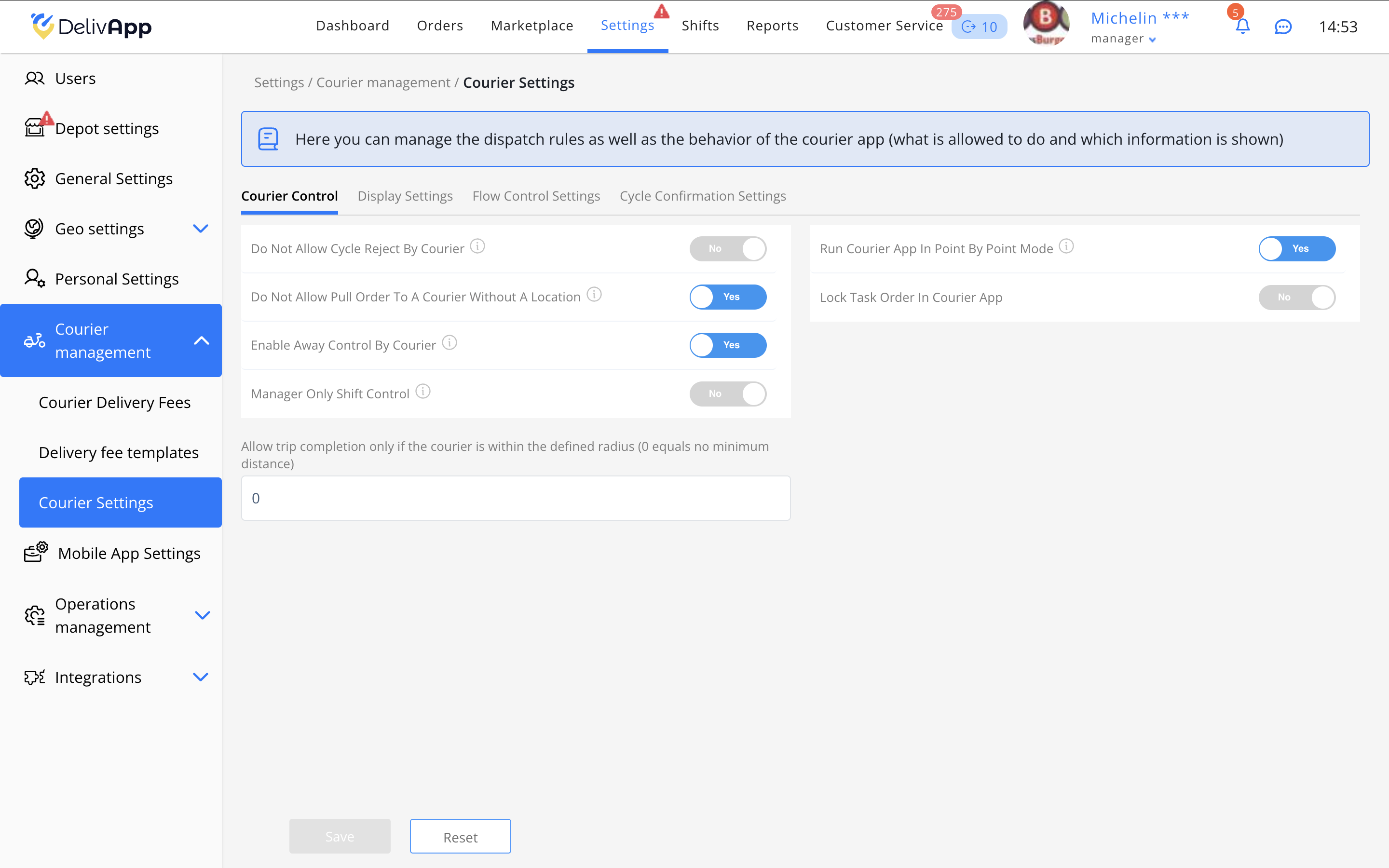
Do Not Allow Cycle Reject by Courier — prevents the courier from rejecting assigned cycles.
Do Not Allow Pull Order to a Courier Without a Location — prevents sending or accepting orders missing delivery address info.
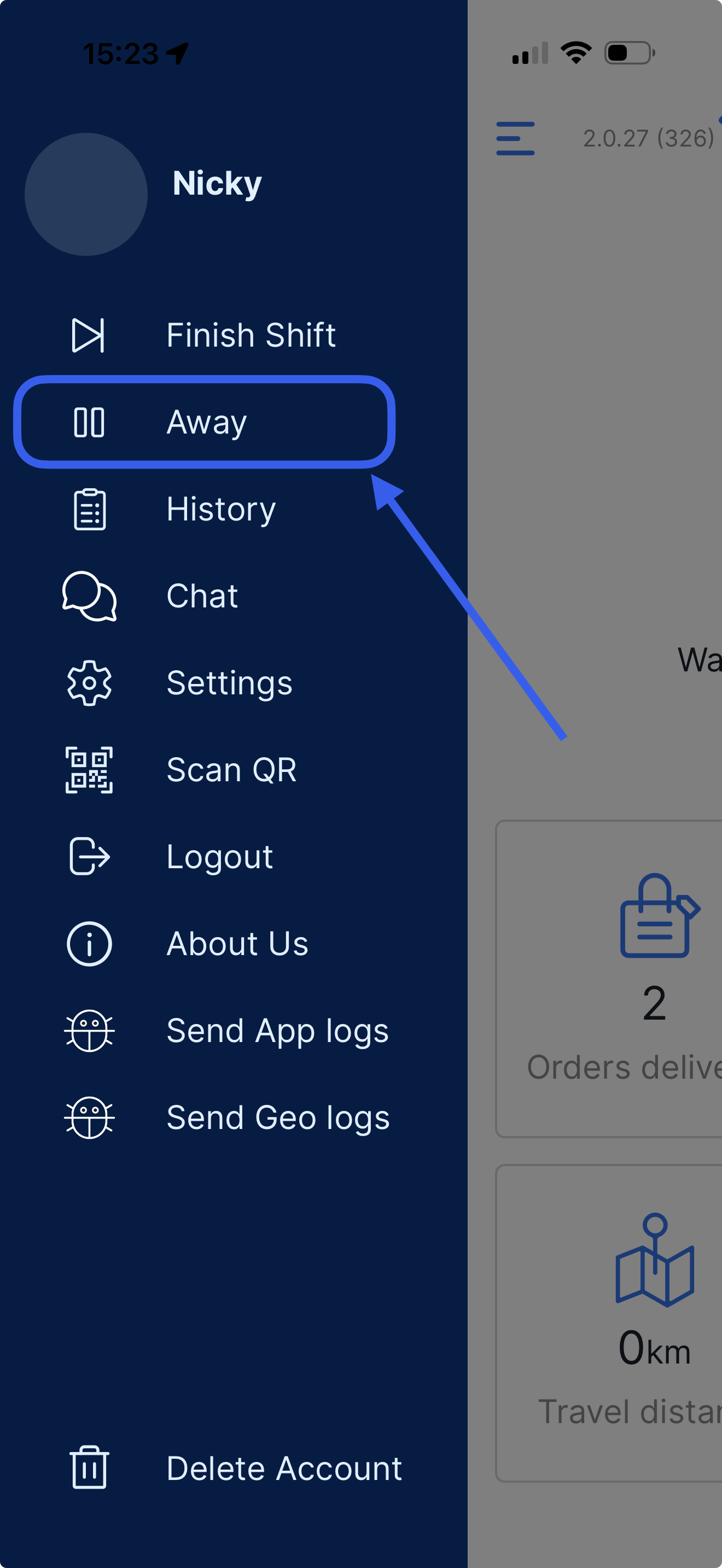
Enable Away Control by Courier — allows couriers to pause their shift.
Manager Only Shift Control — only managers can start/finish courier shifts.
Run Courier App in Point-by-Point Mode — the courier must follow the exact order sequence.
Lock Task Order in Courier App — prevents reordering tasks.
Allow trip completion only within radius (m) — enter the distance radius; 0 = no restriction.
Warning: Enabling point-by-point mode blocks skipping between orders.
Display Settings
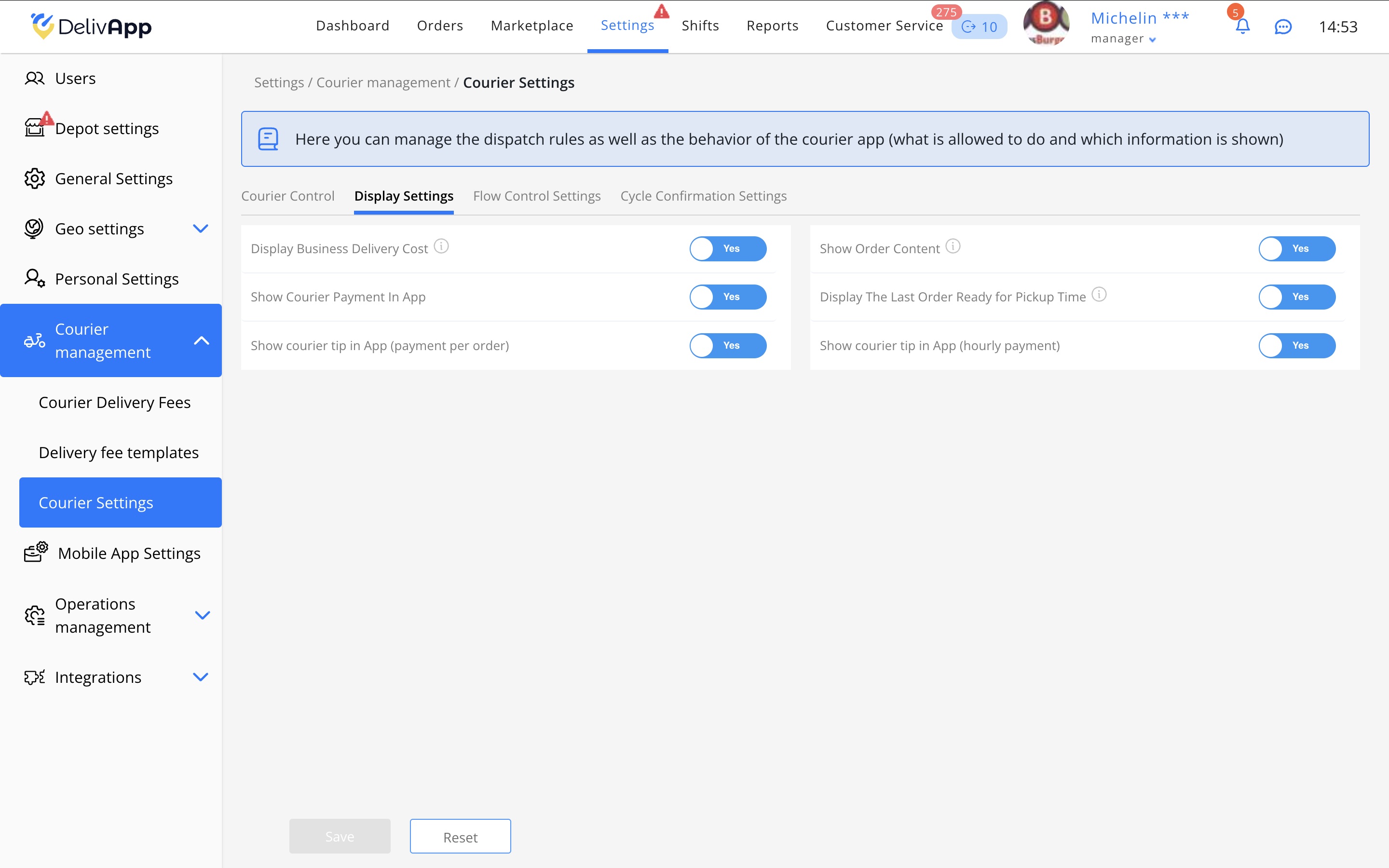
Display Business Delivery Cost — shows the customer’s delivery price.
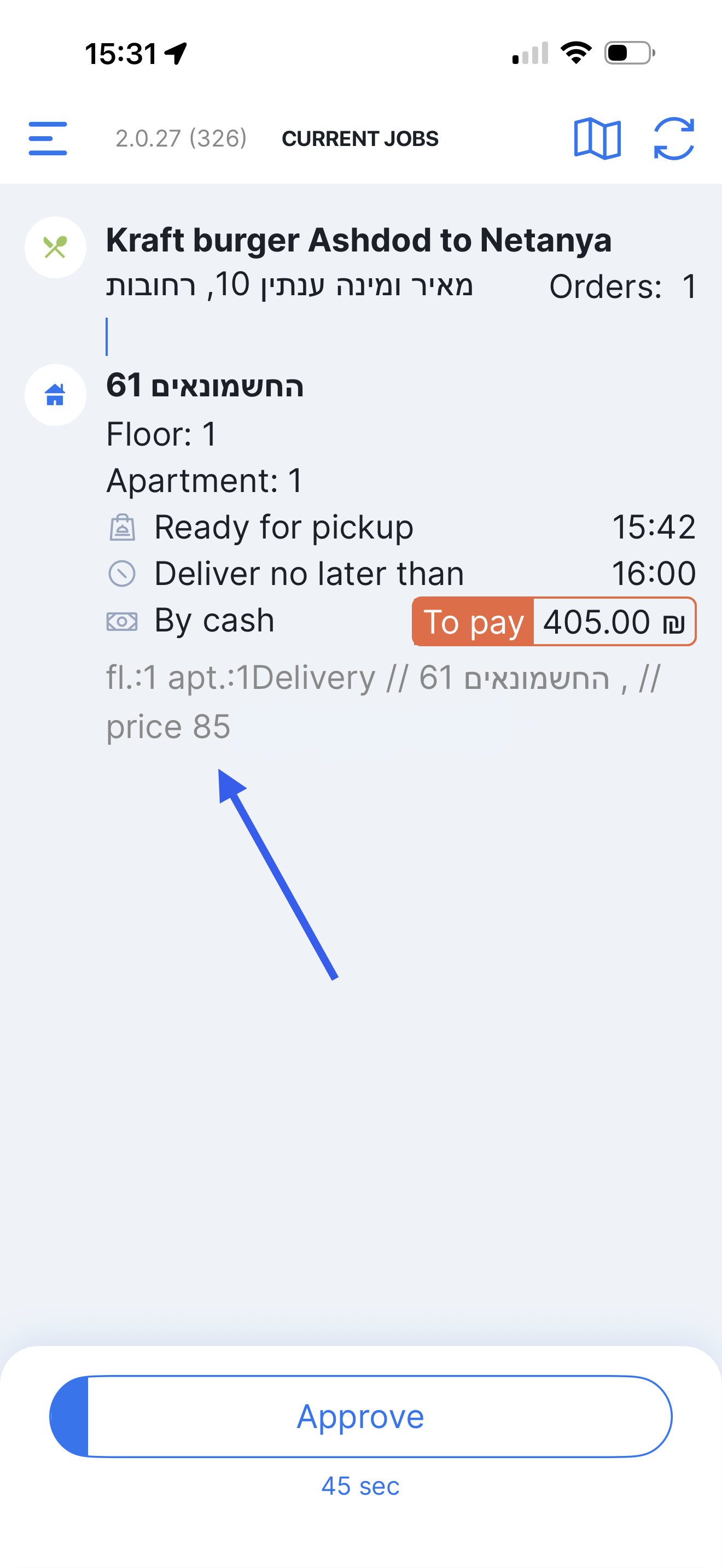
Show Courier Payment in App — displays the courier’s earnings.
Show courier tip (payment per order) — shows received online tips.
Show Order Content — displays the order items.
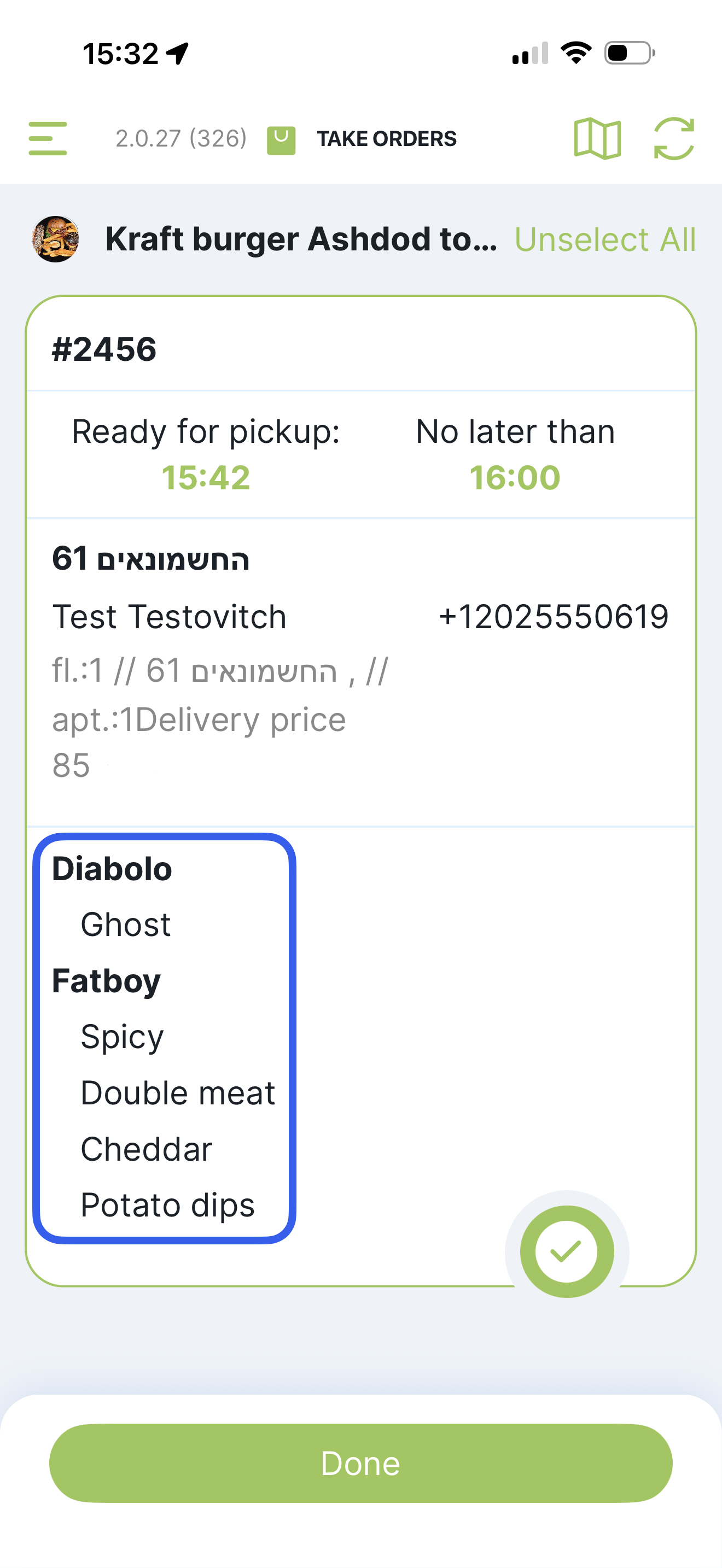
Display The Last Order Ready for Pickup Time — shows when the last order is ready.
Flow Control Settings
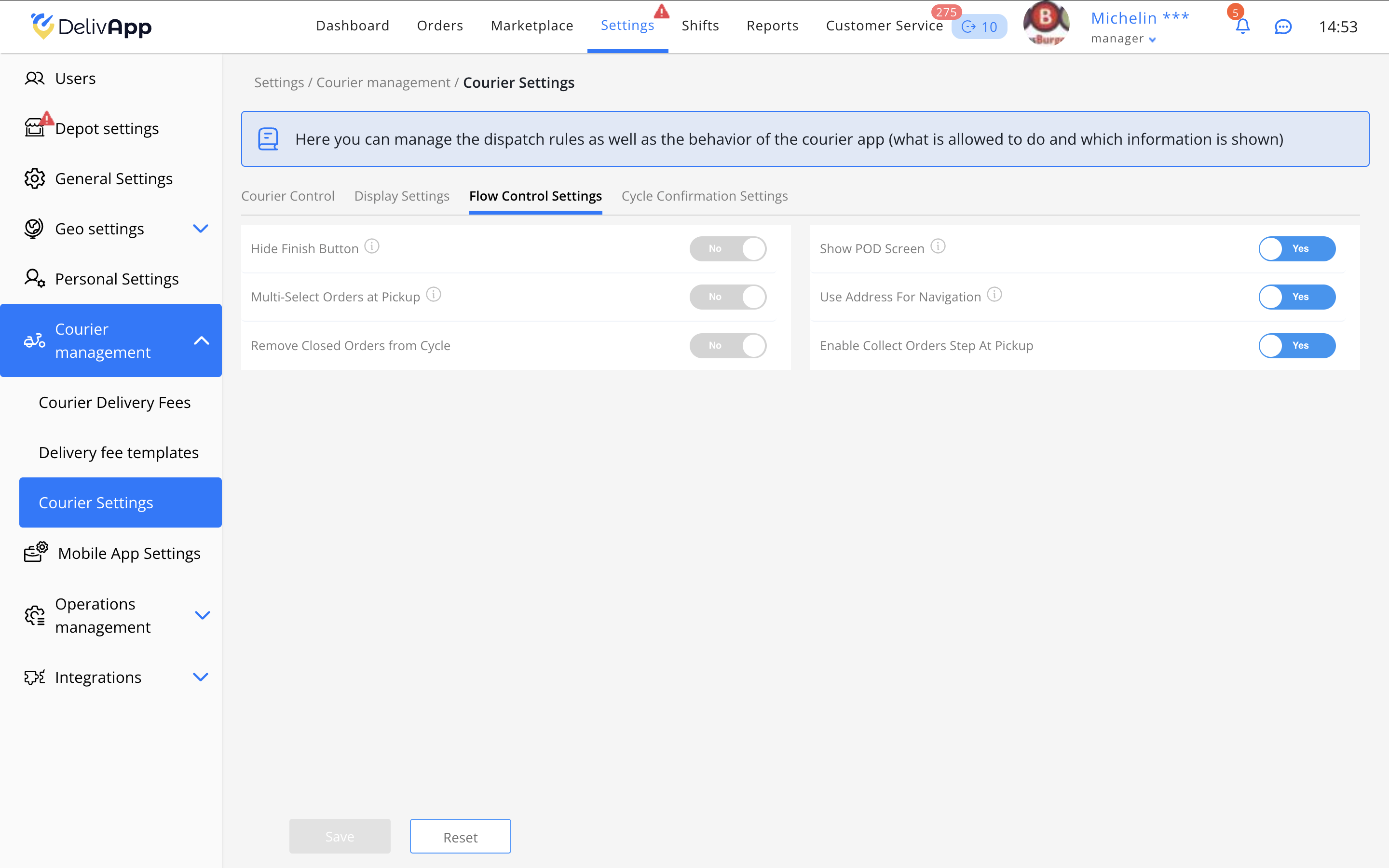
Hide Finish Button — the courier cannot close the entire cycle at once; must complete orders one by one.
Multi-Select Orders at Pickup — select multiple orders simultaneously.
Remove Closed Orders from Cycle — hides completed orders.
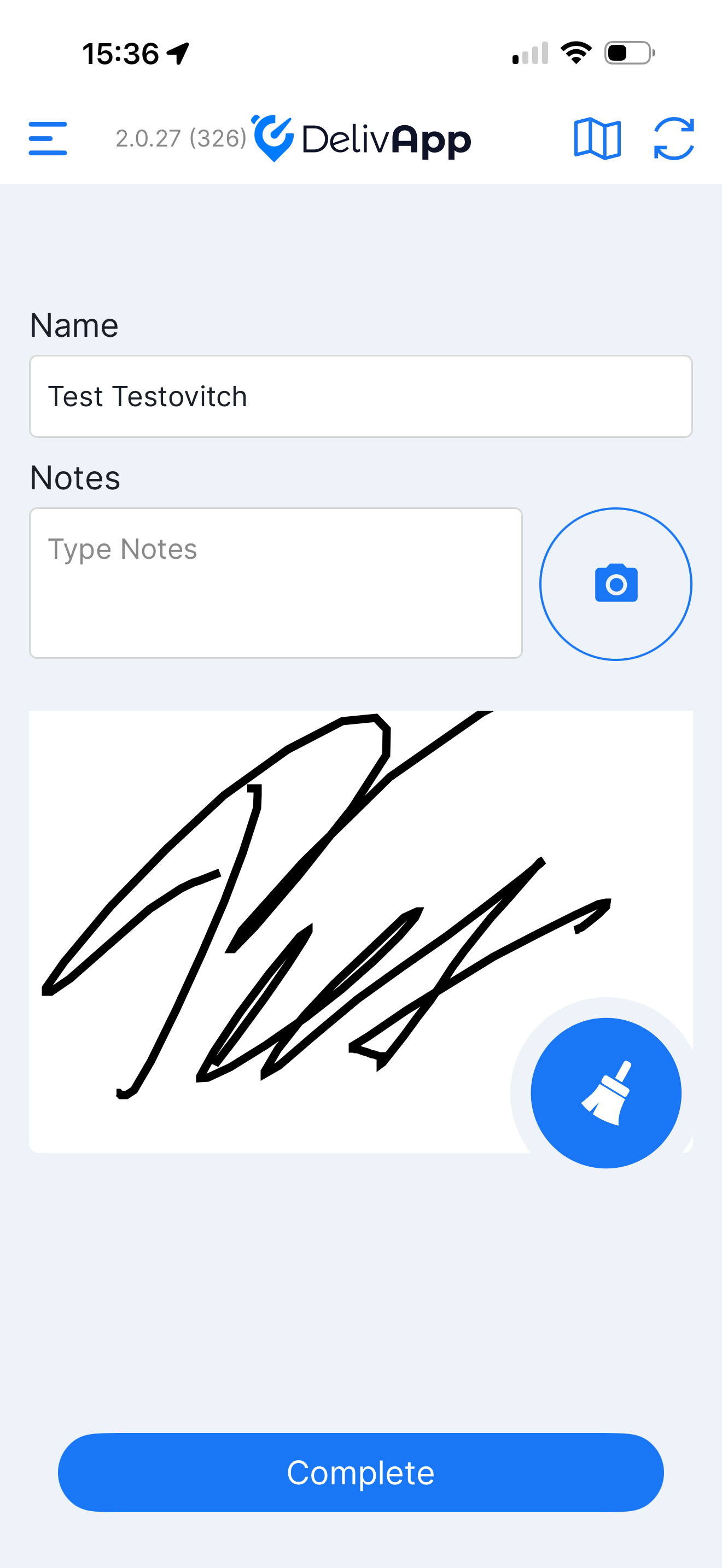
Show POD Screen — courier must take a photo and signature.
Use Address for Navigation — maps open automatically.
Enable Collect Orders Step at Pickup — requires confirmation that the order was collected.
Cycle Confirmation Settings
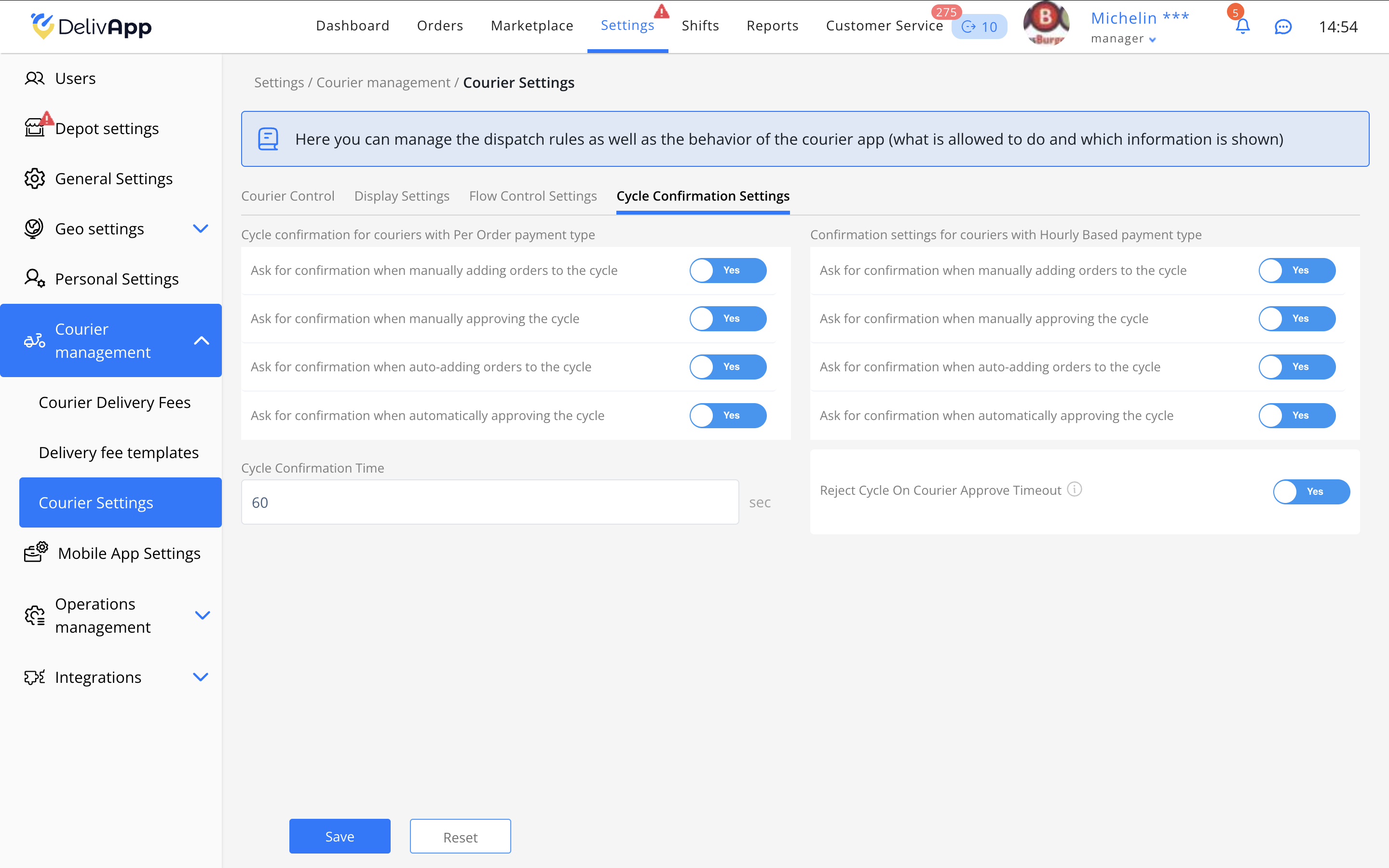
Settings are divided for couriers with:
Per order payment
Hourly payment
Enable the required parameters:
Ask for confirmation when manually adding orders to the cycle — courier must confirm manually added orders.
Ask for confirmation when manually approving the cycle — courier must confirm manually sent cycles.
Ask for confirmation when auto-adding orders — courier confirms automatically added orders.
Ask for confirmation when automatically approving the cycle — courier confirms auto-created cycles.
Set Cycle Confirmation Time (sec), e.g., 60.
Enable Reject Cycle On Courier Approve Timeout — if the courier does not confirm in time, the system rejects the cycle and sends it to the next available courier.
4. Validation and Testing
After completing all configuration steps, run tests:
Create a test order — assign it to a courier.
Check fee calculation — confirm the selected calculation mode applies correctly.
Assign multiple orders to a cycle — verify threshold logic.
Test delivery fee templates — ensure the assigned template works.
Log in to the courier app — check visibility of orders, fees, tips, functionality.
Test confirmation rules — courier must receive confirmation prompts and respond within the allotted time.
Tip: Use real locations and GPS for accurate distance testing.
5. FAQ
1. New rates are not applied. Why?
Check whether you clicked Save, and verify the courier is not using an outdated template.
2. Courier does not see payment per order. Why?
Check whether Show Courier Payment is enabled.
3. Courier cannot start a shift. Why?
Because Manager Only Shift Control is enabled.
4. How to set different rates for specific couriers?
Create separate templates and assign them.
5. Courier cannot complete an order. Why?
Check the completion radius — it may be too small, or GPS accuracy may be poor.
6. Tips are not displayed. Why?
Check whether Show Tips is enabled and the restaurant allows online tips.
7. What happens if the courier doesn't confirm the cycle in time?
If the timeout rule is enabled, the system automatically rejects the cycle and assigns it to another courier.
8. How to temporarily stop sending orders to a courier?
Use Away (Pause) — the courier will stop receiving orders but remain in shift.
6. Conclusion
After completing all steps, you will have a fully configured courier delivery management system. The settings allow you to flexibly manage compensation, control the delivery workflow, and regulate the courier app interface.
For exceptional situations, contact Support via the Admin Panel.
Was this article helpful?
That’s Great!
Thank you for your feedback
Sorry! We couldn't be helpful
Thank you for your feedback
Feedback sent
We appreciate your effort and will try to fix the article