TABLE OF CONTENTS
- 1. Introduction
- 2. Requirements and Preparation
- 3. Detailed Step-by-Step Setup
- 4. Verifying the Results
- 5. Frequently Asked Questions (FAQ)
- 6. Conclusion
1. Introduction
This guide explains how to add the required legal documents to your marketplace:
Privacy Policy
Terms and Conditions
Accessibility Policy
These documents are necessary to comply with legal requirements and to inform users about how their data is processed, under what conditions services are provided, and what accessibility standards are followed.
Once configured, links to these documents will automatically appear:
in the website footer (bottom of the page);
in the mobile app — in the Profile section and at the bottom of the Home screen.
2. Requirements and Preparation
Before you begin, make sure you have:
access to the admin panel with administrator or manager permissions;
prepared document texts: Privacy Policy, Terms and Conditions, Accessibility Policy;
translations of these documents into other languages, if required by your local regulations.
3. Detailed Step-by-Step Setup
3.1. Navigating to the Info Pages Section
In the admin panel, go to Marketplace → App Builder → Info Pages.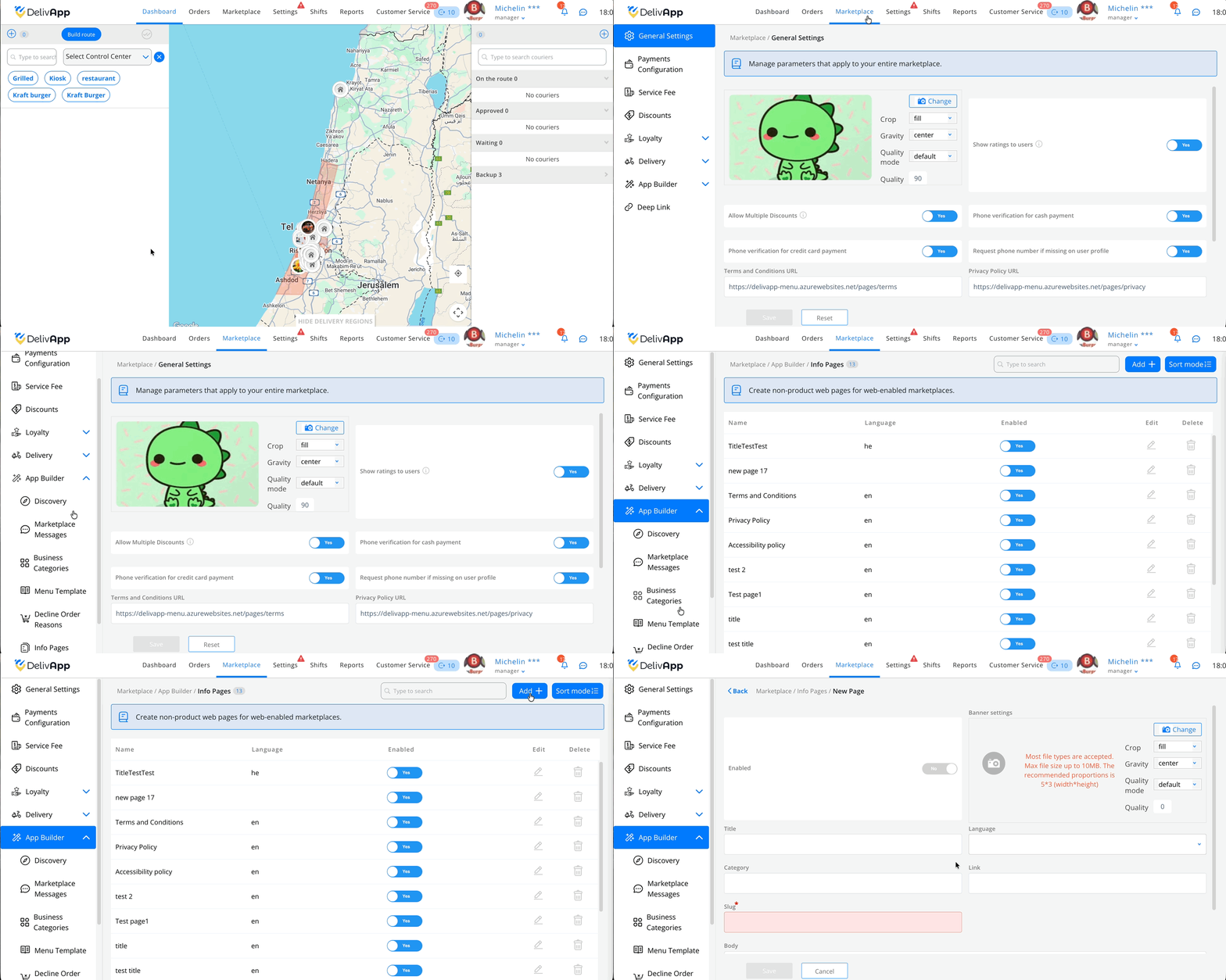
3.2. Creating a New Page
Click Add — the page creation form will open.
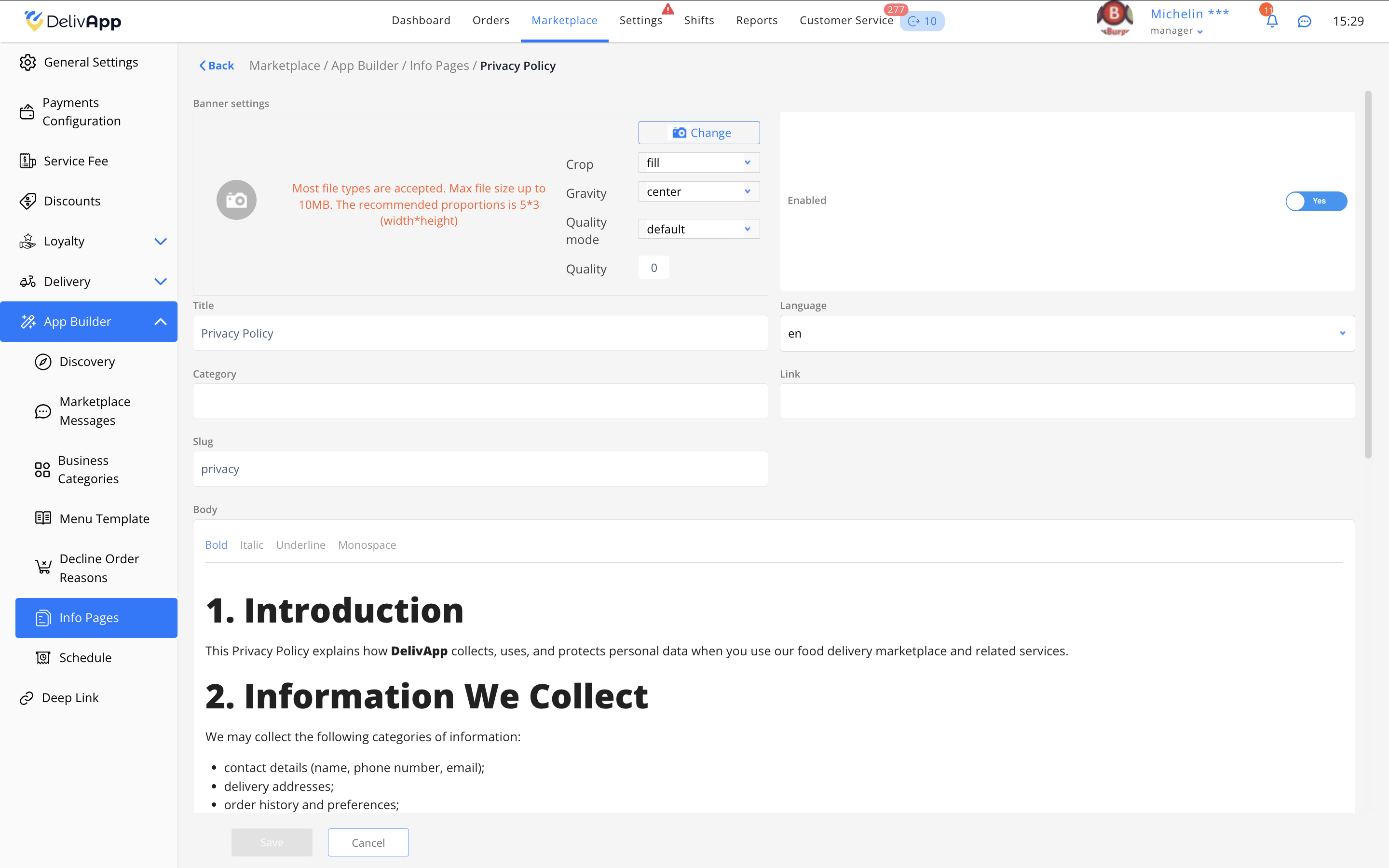
Enable the Enabled toggle to make the page visible to users.
Enter the Title of the page, for example, Privacy Policy.
In the Language field, select the language in which the document will be displayed. If you need several language versions, repeat the process for each language.
In the Slug field, enter a short URL ending (Latin letters, lowercase only). For example:
privacy— for the Privacy Policy,terms— for the Terms and Conditions,accessibility— for the Accessibility Policy.
In the Body field, paste the text of the corresponding document. You can copy it from an external file.
Click Save.
TIP: If you are creating multiple language versions, use the same slug for all translations — the system will automatically display the correct language based on the user's selection.
3.3. Adding the Remaining Documents
Repeat steps 2–8 for the following pages:
Terms and Conditions (
terms)Accessibility Policy (
accessibility)
3.4. Configuring General Links in the Marketplace
Go to Marketplace → General Settings.
Find the fields:
Terms and Conditions URL
Privacy Policy URL
Accessibility Policy URL
Paste the appropriate link into each field in the format:
https://yourdomain/pages/slug
Examples:
Click Save.
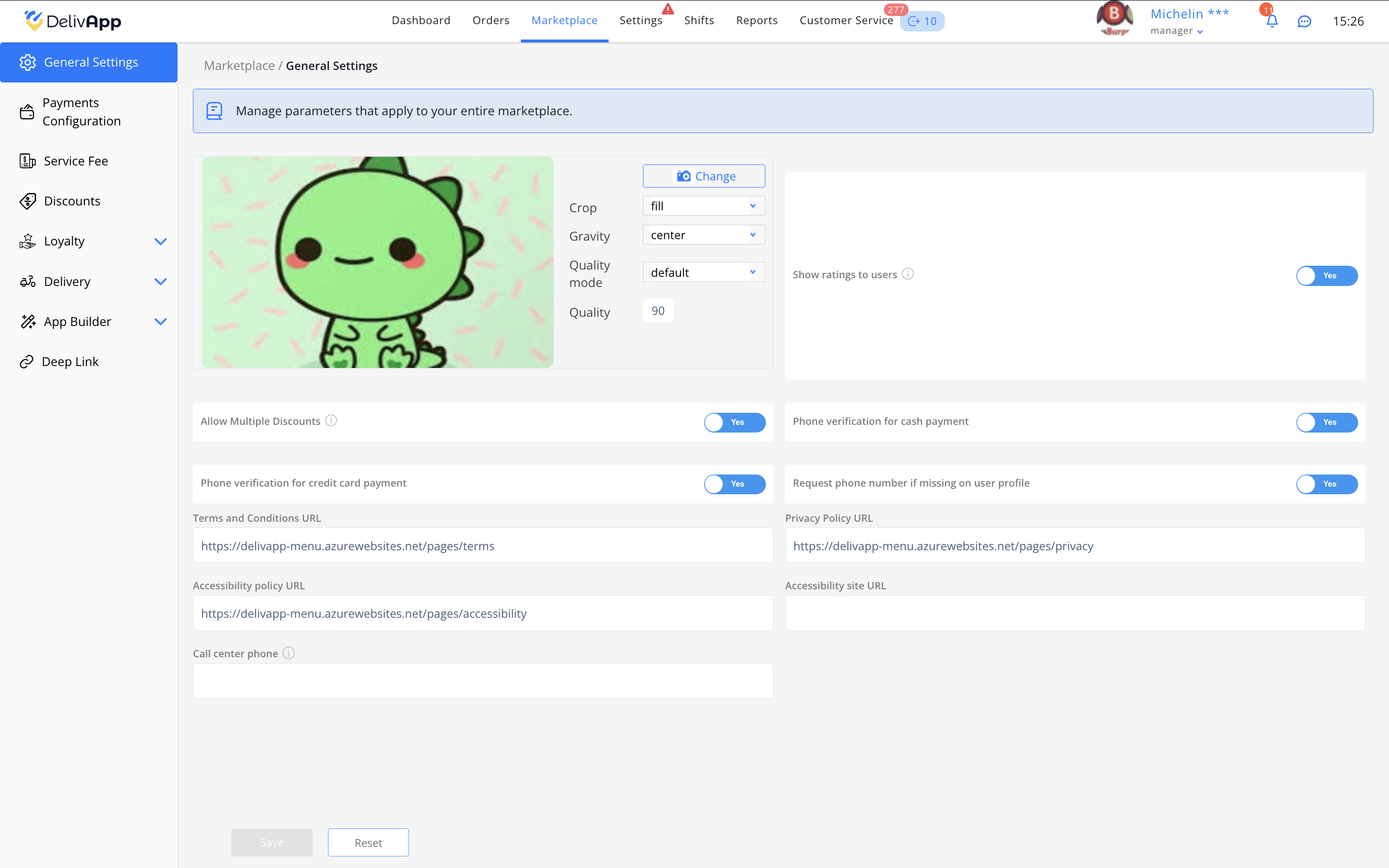
Once saved, the links will automatically appear in the website footer and in the mobile app.
PRO TIP: Add a "Last Updated" date to your document texts — this helps users understand how current the information is.
4. Verifying the Results
To ensure that the pages are displayed correctly:
Open your website and scroll down — links to all three documents should appear in the footer.
Open each link — the page should load and display your content.
In the mobile app, open Home → Profile — the same links should appear at the bottom.
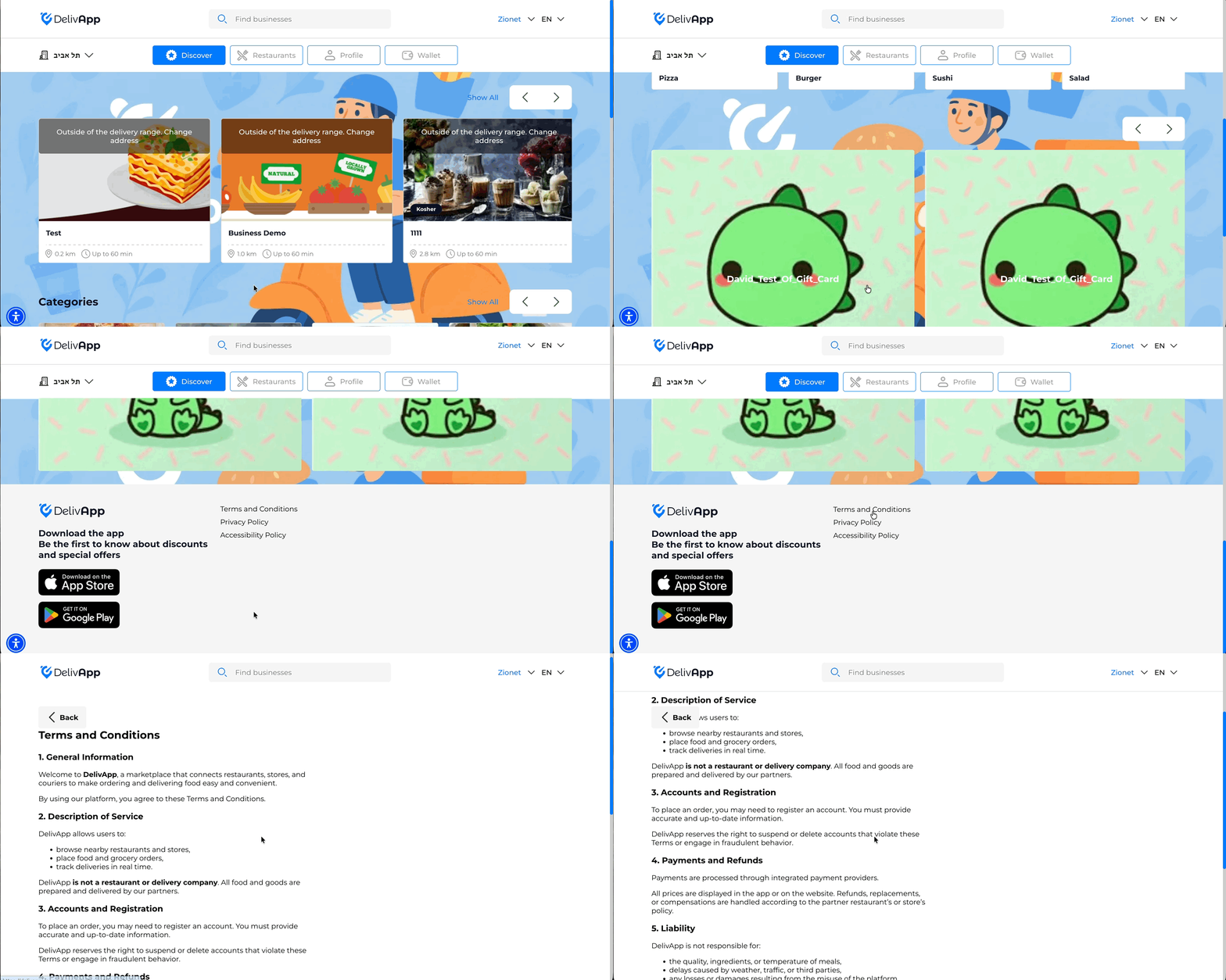
If a document does not open, check that:
the page is enabled (toggle is on);
the slug contains no spaces and is written in Latin letters;
the link in the settings is correct.
5. Frequently Asked Questions (FAQ)
1. Can I temporarily hide a document?
Yes. Simply turn off the Enabled toggle for the info page — it will stop appearing for users but will remain stored in the system.
2. How do I add a translated version of a document?
Create a new page, enter the same slug, and choose a different language. The system will automatically show the correct version based on the user's language.
3. What should I do if a link does not work?
Check that the address starts with https:// and matches the page's slug.
4. Do I need to add these documents if the marketplace is only in testing?
Yes. Even during the testing phase, it is recommended to add basic versions of these policies to avoid issues with browsers and payment systems.
5. Where can I edit the text after saving?
Go to Info Pages, click the pencil icon next to the document, make changes, and save.
6. Conclusion
You now know how to add and configure legal documents for your marketplace. These documents are essential for ensuring transparency and building trust with your customers.
Once all steps are completed, users will easily find the necessary pages, and your marketplace will comply with legal requirements.
If you have any questions, contact customer support through the admin panel or the Help section.
Was this article helpful?
That’s Great!
Thank you for your feedback
Sorry! We couldn't be helpful
Thank you for your feedback
Feedback sent
We appreciate your effort and will try to fix the article